
Portable monitors are a great accessory for MacBook Pro users who need additional screen real estate while on the go.
While MacBook Pros are great work machines, the single display can sometimes limit your efficiency and speed while working. This is especially true if you use your MacBook for commercial projects like graphic design, as a single display means that you have to constantly switch between tabs while working.
We’ve put together this list covering the best portable monitors for MacBook Pro users, including options from budget to top of the range.
Best Options At A Glance

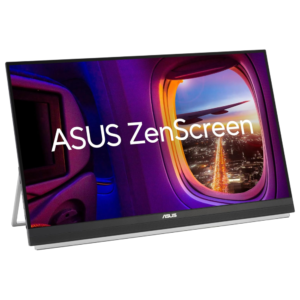
🖥️ Comparison of the best portable monitors for the MacBook Pro
Need more screen space? We’ve compared the top portable monitors for MacBook Pro users, covering key features like size, weight, resolution, and special features.
| 🖥️ Model | 💷 Price Tier | 📏 Screen Size | 🖼️ Resolution | ⚡ Refresh Rate | ⭐ Key Feature | 🎯 Best For |
|---|---|---|---|---|---|---|
| MSI PRO MP165 E6 | £ | 15.6" | Full HD | 60Hz | TÜV Eye Care | Budget productivity |
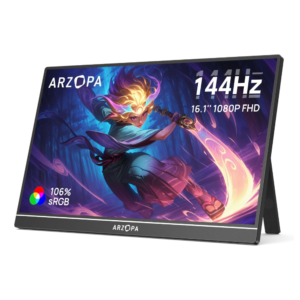
| ARZOPA Z1FC | ££ | 16.1" | Full HD | 144Hz | High refresh rate | Gaming on the go |
| EVICIV 2.5K Monitor | £££ | 16" | 2.5K (2560×1600) | 144Hz | QLED + high colour gamut | Creative work & premium use |
| ASUS ZenScreen MB27ACF | ££££ | 27" | QHD | 100Hz | 2.1 audio + large display | Desktop-level productivity |
Product Summaries
MSI PRO MP165 E6 15.6" FHD Portable Monitor
- Brand - MSI
- Dimensions - 1.4 x 35.7 x 21 cm
- Weight - aprx. 500 g
- Screen Size - 15.6"
- Special Feature - TÜV Rheinland Eye Comfort certified features
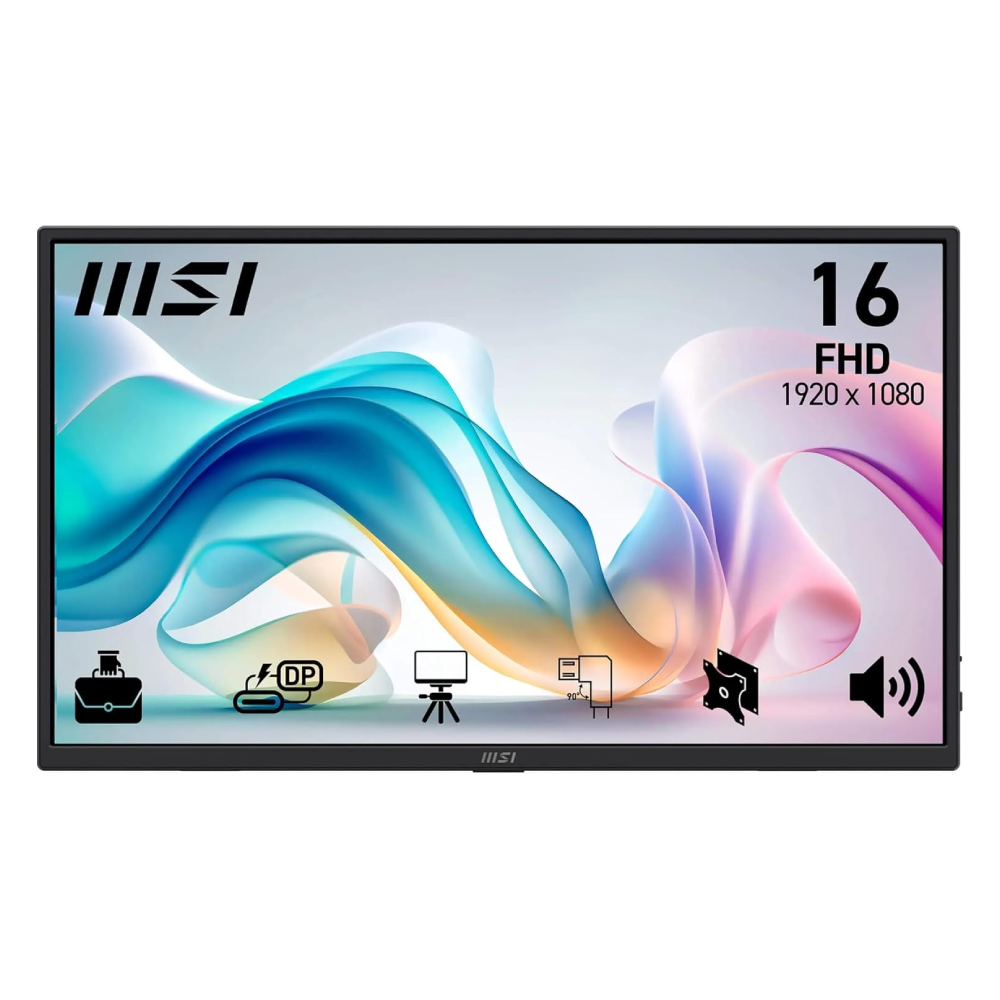
Firstly we have the MSI PRO MP165 E6 15.6″ FHD Portable Monitor, which is the cheapest monitor on our list – it’s currently selling for £89/$120 on Amazon.
The MSI PRO MP165 E6 is a slim and lightweight 15.6-inch portable monitor designed to boost productivity on the go. It features a Full HD IPS display with wide viewing angles, delivering clear visuals for work, browsing, or media use.
It’s also built for comfortable long-term use. TÜV-certified eye care features like low blue light and anti-flicker technology help reduce strain, while the matte anti-glare screen improves visibility in brighter environments.
Connectivity is flexible, with HDMI and dual USB-C ports supporting video input and power delivery. You can easily connect it to laptops, PCs, or even compatible smartphones.
Overall, it’s a well-balanced portable monitor offering solid image quality, strong portability, and useful features at a very competitive price.
Buy the AOC I1601FWUX Portable Monitor on Amazon for only £89/$120:
ARZOPA 16.1'' 144Hz Portable Monitor with Kickstand
- Brand - ARZOPA
- Dimensions - 0.9 x 36.6 x 27.8 cm
- Weight - 780 g
- Screen Size - 16.1"
- Special Feature - Dual Speakers
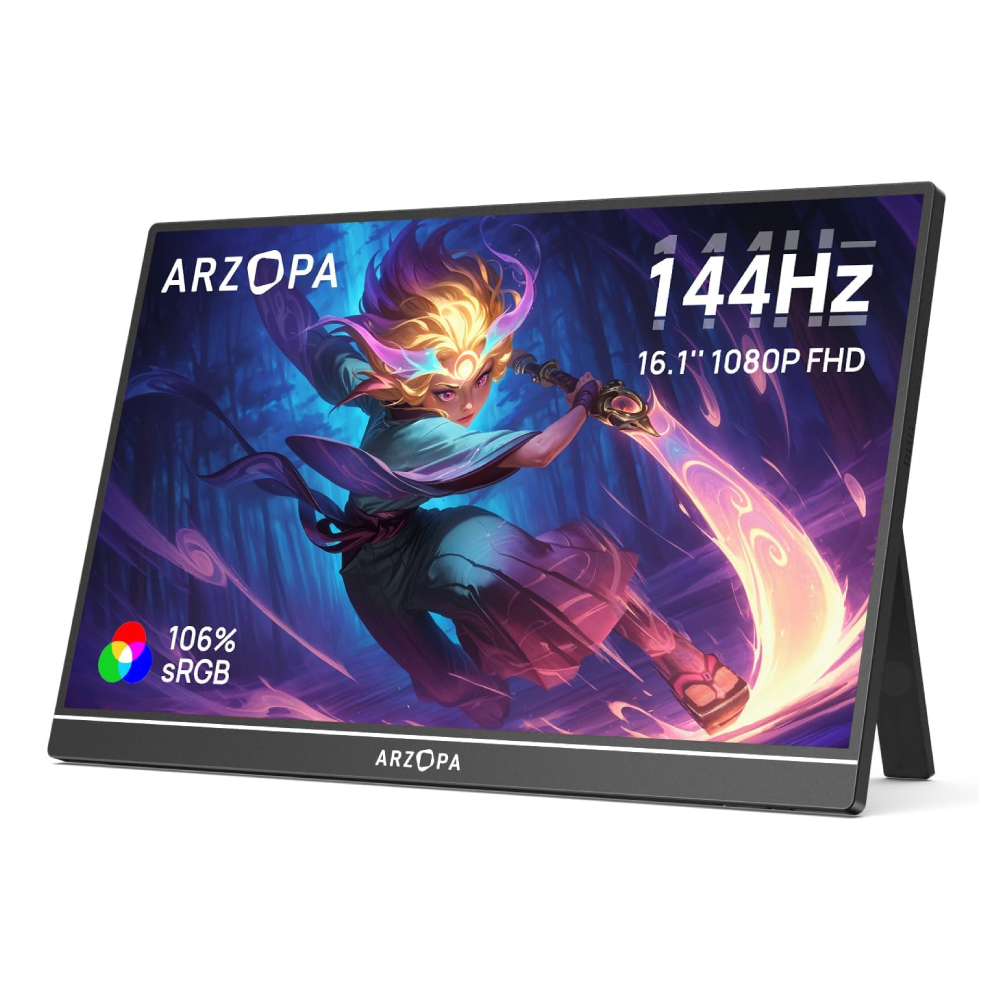
The ARZOPA Z1FC 16.1″ Portable Monitor is a strong choice if you want smoother visuals for gaming and media. It features a Full HD display with a 144Hz refresh rate, delivering noticeably better motion clarity than standard 60Hz portable screens.
Image quality is solid too. The 106% sRGB colour coverage helps produce more vibrant and accurate colours, making it suitable for both gaming and general content use.
It’s designed for convenience. The plug-and-play setup means no drivers are needed, and with USB-C and Mini HDMI, it connects easily to laptops, consoles, and handheld devices like the Steam Deck.
Portability is another highlight. Despite the larger 16.1-inch screen, it remains slim and lightweight, with a built-in kickstand for quick setup anywhere.
Overall, this is a great mid-range portable monitor, especially if you want higher refresh rates and better colour performance without spending too much.
Buy the ARZOPA 16.1” 144Hz Portable Monitor with Kickstand on Amazon for only £120/$162:
EVICIV 2.5K 144HZ 16" Portable Monitor
- Brand - EVICIV
- Dimensions - 1 x 35.3 x 22.9 cm
- Weight - aprx. 500 g
- Screen Size - 15.6"
- Special Feature - VESA Mount & Magnetic Smart Cover
The EVICIV 2.5K 144HZ 16″ Portable Monitor is another great option. It’s currently selling for £130/$176 on Amazon.
The EVICIV 16″ 2.5K Portable Monitor is a premium option designed for users who want sharper visuals and higher colour accuracy. With a 2560×1600 resolution and 16:10 aspect ratio, it delivers noticeably more detail and workspace compared to standard Full HD screens.
Image quality is a major highlight. The QLED panel offers up to 145% sRGB colour coverage, 2000:1 contrast, and high brightness, producing vibrant colours and deeper blacks. The 144Hz refresh rate also ensures smooth performance, making it suitable for both productivity and gaming.
Build quality is strong. The aluminium body improves durability and heat dissipation, while the slim design keeps it portable at just over 1kg. The included magnetic smart cover doubles as a stand, adding convenience when travelling.
Connectivity is straightforward with dual USB-C ports and Mini HDMI, allowing quick plug-and-play use with laptops, consoles, and mobile devices. VESA support also adds flexibility for desk setups.
Overall, this is a high-end portable monitor that stands out for its resolution, colour performance, and build quality – ideal if you want a more premium second screen experience.
Buy the EVICIV 2.5K 144HZ 16″ Portable Monitor from Amazon for only £130/$176:

ASUS ZenScreen MB27ACF 27" QHD Monitor
- Brand - ASUS
- Dimensions - 61.1 x 30.1 x 75.6 cm
- Weight - 4.8 kg
- Screen Size - 27"
- Special Feature - 2.1 Channel Audio With Subwoofer
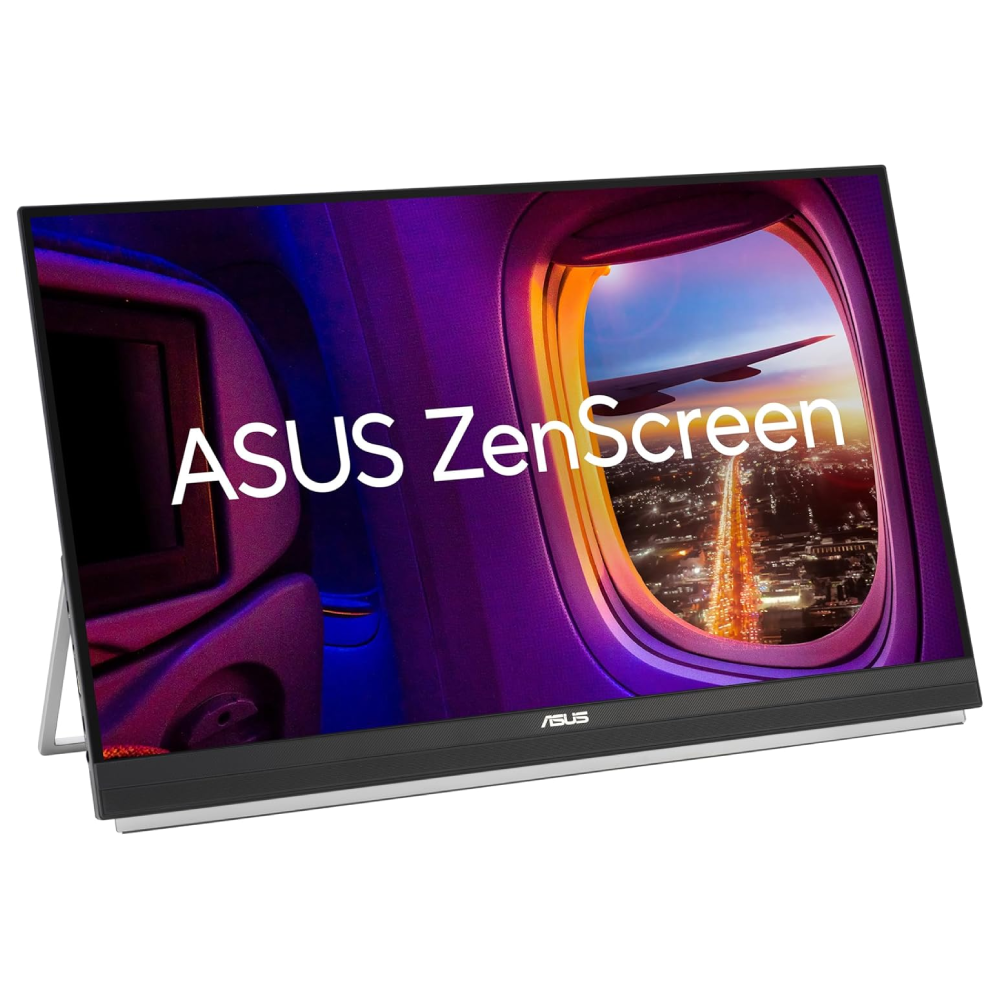
Lastly we have a larger option for people looking for a professional grade monitor – the ASUS ZenScreen MB27ACF 27″ QHD Monitor. It’s currently selling for £379/$512 on Amazon.
The ASUS ZenScreen MB27ACF is a premium large-format portable monitor designed for users who want a full desktop-style experience on the go. Its 27-inch QHD IPS display delivers sharp detail and plenty of screen space, making it ideal for multitasking, creative work, and extended productivity.
Visual performance is strong. The 2560×1440 resolution provides noticeably more clarity than Full HD, while the 100Hz refresh rate offers smoother motion for everyday use. The IPS panel ensures wide viewing angles and consistent colours across the screen.
Portability is impressive for its size. Despite the large display, it features a slim, lightweight design with an integrated carry handle and kickstand. It also supports flexible mounting options, including a C-clamp and VESA-style setups for more permanent workspaces.
Connectivity is another highlight. A full-function USB-C port supports video, data, and up to 70W power delivery, alongside HDMI and a headphone jack. Built-in 2.1 speakers with a subwoofer provide better audio than most portable monitors.
Overall, this is a high-end portable monitor that bridges the gap between mobility and desktop performance, making it a great choice for professionals who need a larger, more capable second screen.
Buy the ASUS ZenScreen MB27ACF 27″ QHD Monitor from Amazon for £379/$512:
🖥️ MacBook Pro Portable Monitor Specs Explained
Understanding the key specs will help you choose the right portable monitor based on how you plan to use it – whether that’s work, gaming, or travel.
| ⚙️ Feature | 📊 What It Means | 🎯 Why It Matters | ✅ Recommended |
|---|---|---|---|
| Screen Size | Physical display size (inches) | Affects portability vs workspace | 15.6"–16" for balance |
| Resolution | Pixel count (e.g. 1080p, 2.5K) | Sharper image & more detail | 1080p minimum, 2.5K+ for premium |
| Panel Type | IPS / VA / OLED display tech | Controls colour accuracy & viewing angles | IPS or OLED |
| Refresh Rate | How smooth motion appears (Hz) | Important for gaming & scrolling | 60Hz (standard), 120–144Hz (gaming) |
| Colour Gamut | Range of colours displayed (sRGB %) | Better colour accuracy for media/design | 100%+ sRGB |
| Connectivity | Ports (USB-C, HDMI, etc.) | Determines compatibility with devices | USB-C + HDMI |
| Power Delivery | Power via USB-C | Reduces need for extra cables | Supported if possible |
| Weight & Thickness | Portability factors | Easier to carry for travel | < 1kg preferred |
FAQs
- Firstly, you need to connect your external monitor to power using it’s included power cable. Depending on the monitor your using, there will likely be some indication that it’s powered, either through the screen turning on or through the illumination of an indicator light.
- Next, connect your external monitor to your MacBook Pro M1 using either an HDMI cable or a Thunderbolt cable – the cable you choose will depend on your chosen monitor, so double check which cables your monitor supports if you’re not sure (you can also buy adapters to convert cables to other port types if required, and they’re usually fairly cheap).
- Once your monitor has power and you’ve connected it to your MacBook, your MacBook should detect it automatically, and you’ll see your screen on your external monitor. You can then review your setting to create the perfect look for you.
- Firstly, you need to connect your external monitor to power using it’s included power cable. Depending on the monitor your using, there will likely be some indication that it’s powered, either through the screen turning on or through the illumination of an indicator light.
Almost all MacBooks have Thunderbolt ports, allowing you to connect to portable monitors using either a Thunderbolt cable or USB-C. You can also buy converters if your chosen monitor doesn’t work with your chosen cable, so there’s almost always a solution if you’re looking for some extra screen real estate.Your connections and monitor compatibility will depend on your model of MacBook, so it’s always worth checking this out before buying a monitor.
In short, yes. As long as you have already connected your MacBook to an external monitor, keyboard, and mouse, you shouldn’t have any issues closing your MacBook (this is also known as entering clamshell mode). You don’t need the keyboard and mouse if you don’t plan on using your MacBook while closed, like when you’re watching a movie. It’s worth mentioning that if you unplug your MacBook while it’s closed the external monitor will turn off automatically, so you’ll likely want to keep it plugged in.
You can connect your MacBook Pro with M1 or M2 up to two external monitors, and there’s a couple of ways to do this. One way to do this is by using a Thunderbolt 4 dock, which allows you to connect both your MacBook and your external monitors with ease. Alternatively, you can use the Thunderbolt and HDMI ports to connect your monitors directly into your MacBook, avoiding the need for a Thunderbolt 4 dock.
Thanks for reading our article. If you want to keep your setup clean, you may want to take a look at our article covering Best Air Compressor For Cleaning Your PC.
Feel free to leave a comment below if you have any thoughts or queries that you’d like us to take a look at – we’d be happy to help. Bye for now!